
Admin getting started
From invitation through first sign-in and TOTP setup, plus forgot password. This guide stops when authenticator enrollment is complete. It does not show the Admin workspace (Overview, Cases, or other tabs), which can contain sensitive Case data.
Who this is for
- Newly invited Admin, Super Admin, or Developer users
- Anyone resetting a forgotten Admin password before re-entering the workspace
Reporters do not use these screens. For public Report and tracking, see Submit a Report and Track a Case.
Invitation
A Super Admin invites you from Team (or Developers for Developer managers). You receive an email with a link to set your password. Use that link once, choose a strong password (at least 12 characters), then continue to sign-in.
If the invite link expired, ask a Super Admin to send a new invitation. Do not reuse someone else's invite.
Sign in
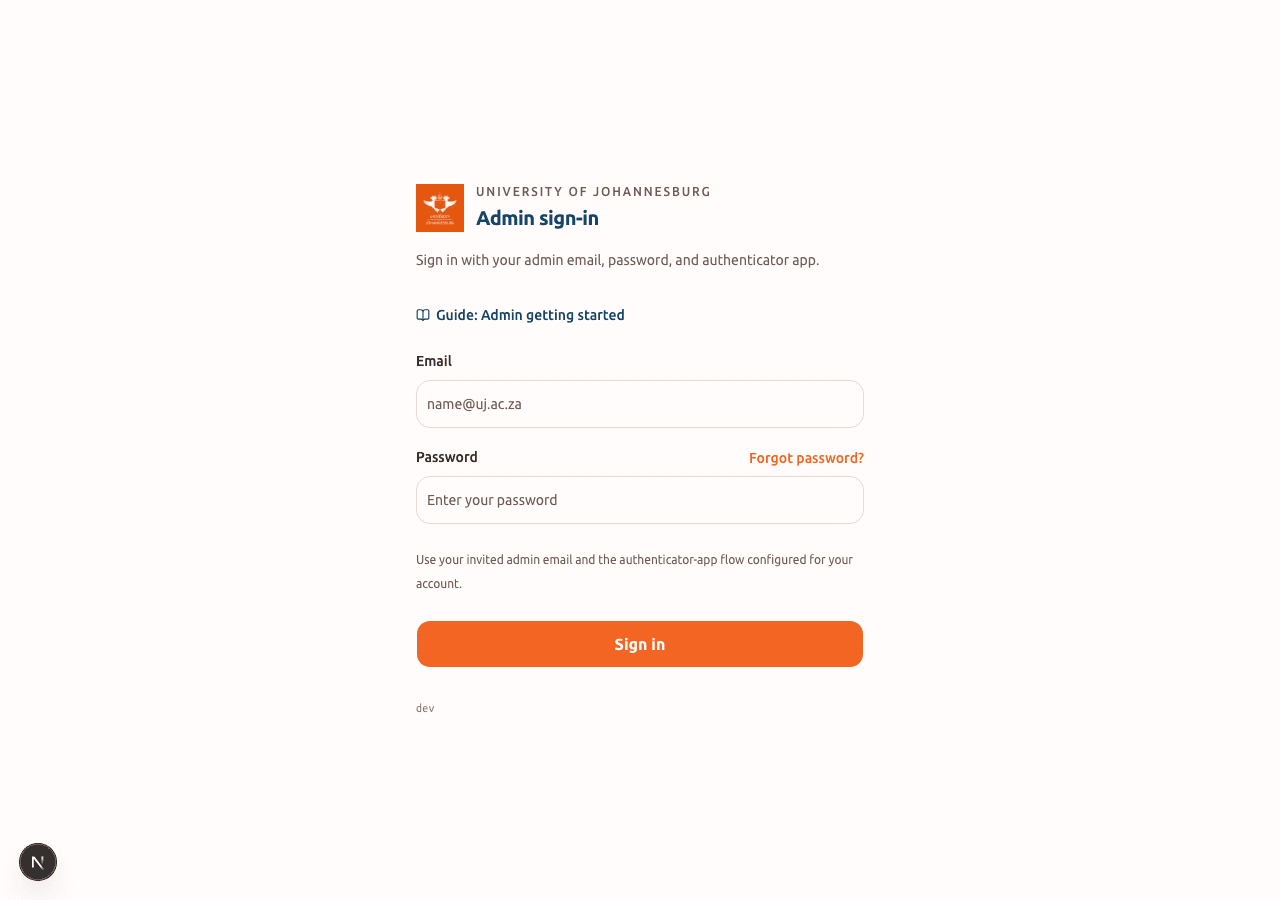
Open /admin/auth/login. Enter your invited institutional email and password, then continue.
Forgot password
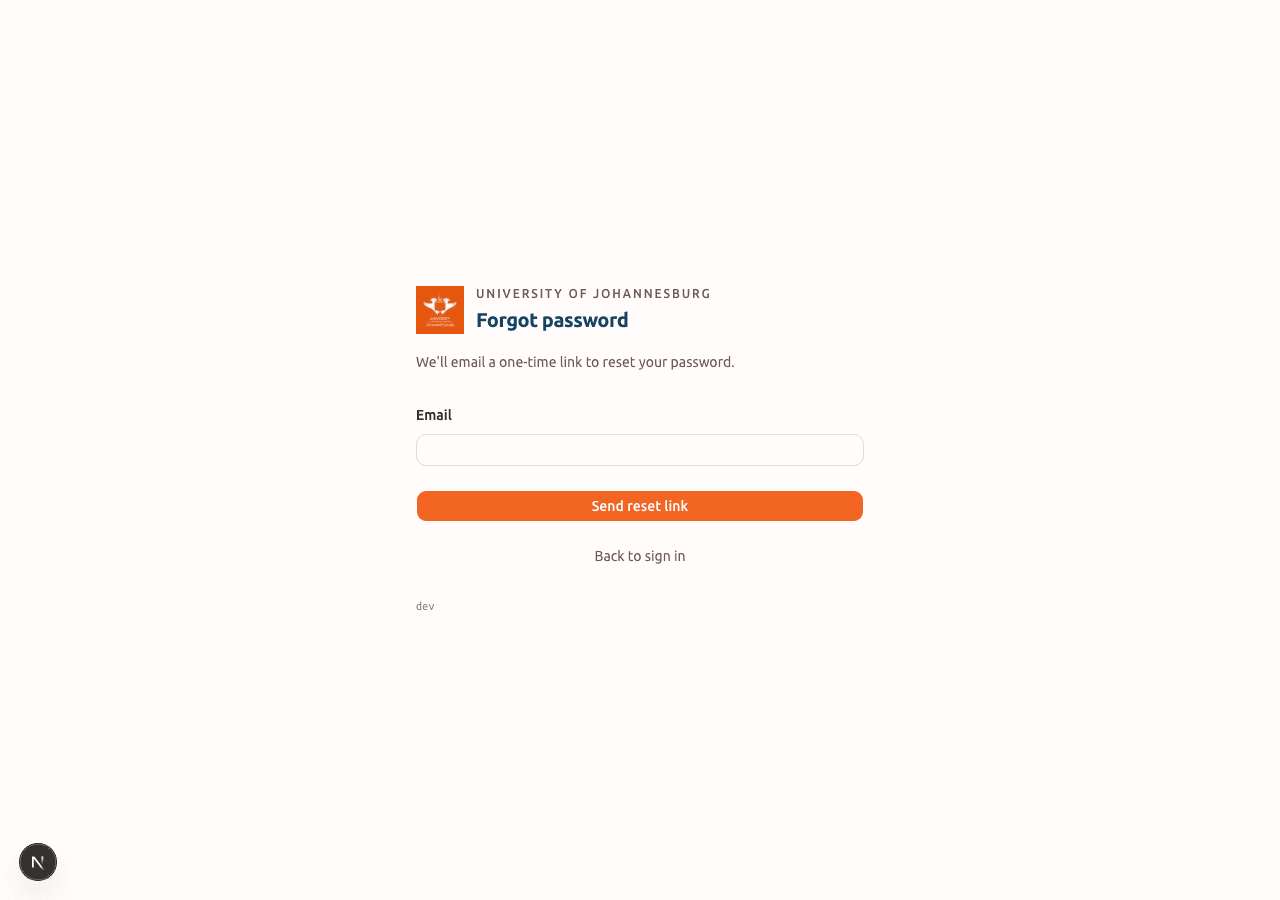
If you cannot sign in with your password, open Forgot password? on the sign-in screen (or go to /admin/auth/forgot-password).
- Enter your invited institutional email.
- Choose Send reset link.
- If that email is registered, you receive a one-time email link (the screen confirms this without revealing whether the address exists).
- Open the link, choose a new password of at least 12 characters on Reset password, then return to sign-in.
- Complete TOTP (or first-time TOTP setup) as usual. Resetting the password does not remove your authenticator enrollment.
First visit: set up TOTP
If you have not enrolled an authenticator yet, you are sent to Set up two-factor authentication. You cannot open the Admin workspace until this finishes.
- Confirm your password and choose Continue setup.
- Install Microsoft Authenticator (or another TOTP app) on your phone.
- Add an account and scan the QR code shown on screen (or enter the manual key).
- Store the backup codes somewhere safe offline. Each code works once if you lose the app.
- Enter the current 6-digit code from the app to finish.
We do not publish screenshots of the QR code, backup codes, or the Admin workspace. Complete those steps only on your own device.
Later visits: authenticator code
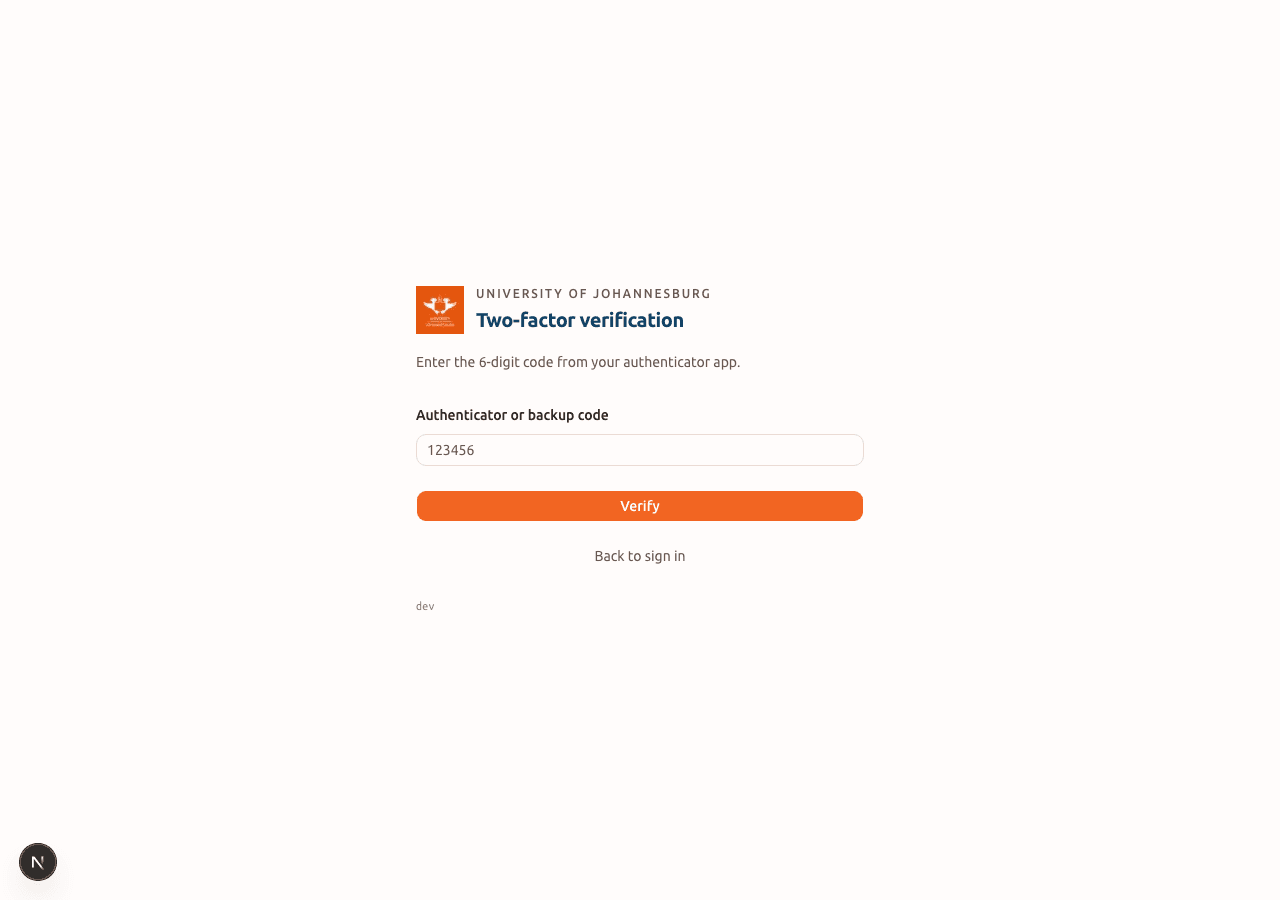
After TOTP is enrolled, each sign-in asks for a one-time code (or a backup code) before the workspace opens.
After setup
When verification succeeds, you enter the Admin workspace. For Case handling, Privacy mode, and each tab, use the other guides under Admin User Guides after you are signed in. Keep Privacy mode on when sharing a screen.
Troubleshooting
| Problem | What to try |
|---|---|
| Invite link invalid | Request a fresh invite from Super Admin. |
| Reset email not arriving | Check spam; confirm the invited institutional email; wait a few minutes and retry once. |
| Authenticator code rejected | Confirm the phone clock is automatic; wait for the next 6-digit code; try a backup code if needed. |
| Lost phone / authenticator | Use a backup code, then open Profile after sign-in to manage TOTP. If all codes are gone, ask Super Admin for account recovery per local process, or open Contact support. |
| Landed on setup again | Finish all TOTP steps including backup codes and final code entry. |
| Portal error after sign-in | See Contact support and create a ticket at /support. |