
Contact support
How to reach IT Support for this portal (technical help, access problems, or bugs). Both Reporters (public site) and Admin workspace users can open a support ticket.
IT Support is not the same as Case investigation. Case questions for an open Report belong on Track a Case or with your Case Assignee. Use support when the website or Admin tools are broken, blocked, or unclear.
Who this is for
| Audience | Typical reasons |
|---|---|
| Reporter (no account) | /report or /track errors, cannot submit, credentials screen failed to show |
| Admin / Super Admin / Developer | Sign-in or TOTP problems after trying the getting-started steps, a workspace page fails, wrong access for your role |
Before you open a ticket
- Search the User Guides (or Admin User Guides) for your topic.
- For Admin sign-in, read Admin getting started (invite, password reset, authenticator).
- Note what you were doing, the exact page URL, and any error text. Do not put Case Access tokens, passphrases, or full incident narratives in a support ticket.
Create a support ticket
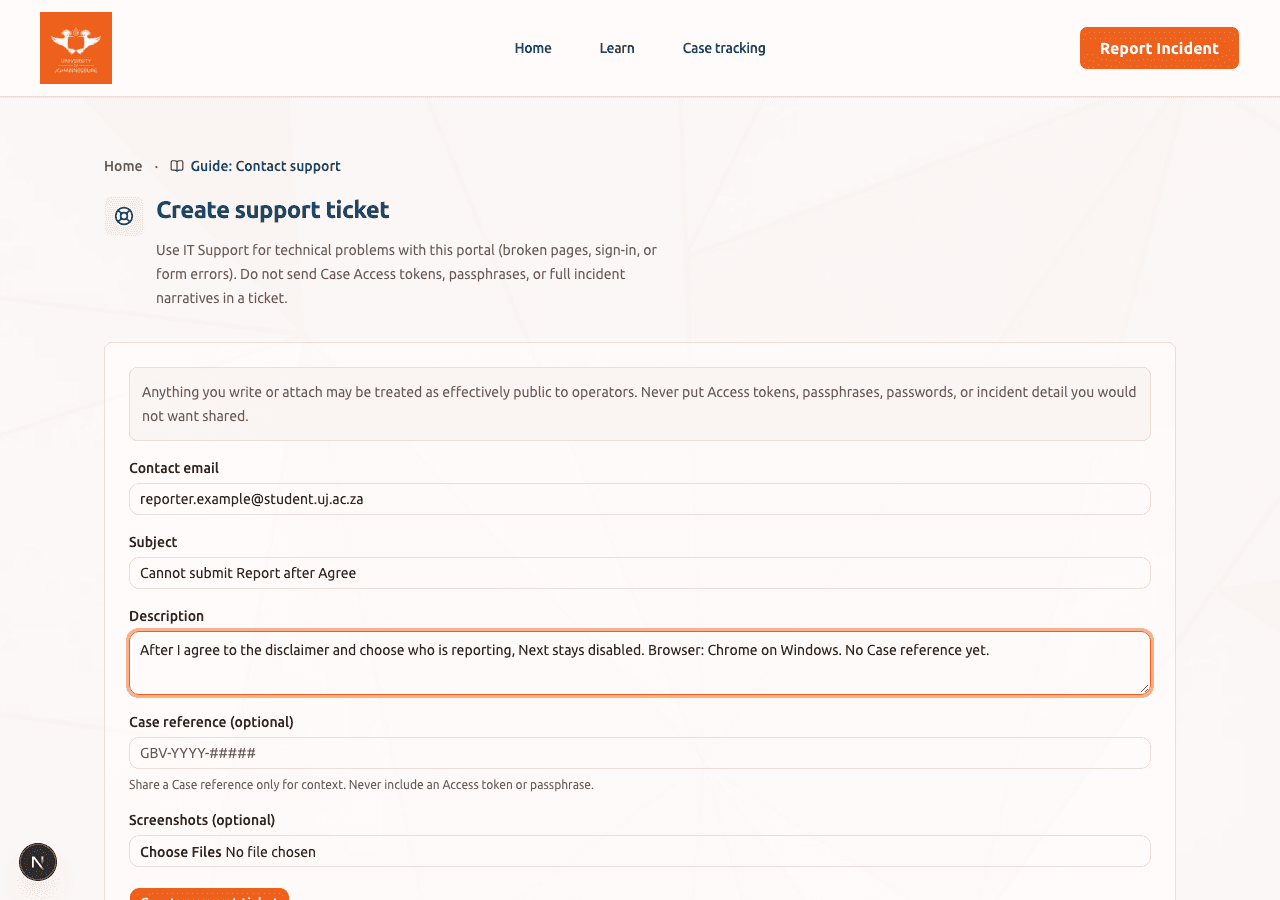
Open Create support ticket. The same page works whether you are signed in or not. Signed-in Admin workspace users get their institutional email prefilled when available.
Read the sensitivity warning at the top of the form first. Then fill the labeled fields:
- Contact email - where Support replies (institutional email for Admins)
- Subject - short title for the problem (for example "Cannot submit Report after Agree")
- Description - what you were doing, the page URL, steps to reproduce, and any error text
- Case reference (optional) - a Case id such as
GBV-YYYY-#####for context only - Screenshots (optional) - images or PDFs that do not show Case PII, Access tokens, or passphrases
Choose Create support ticket. You receive a Support Ticket reference (SUP-YYYY-#####) and an email with a Support Ticket access link to open the thread.
What happens next
Developers operate Support Tickets (Claim, status, replies). Open your access link to continue the thread in the browser; after unlock, the secret does not need to stay in the address bar. Submitter replies on resolved or closed tickets reopen them. Urgent safety or crisis needs are not handled here; use campus emergency and helpline channels on the public site.
Troubleshooting
| Problem | What to try |
|---|---|
| Not sure if it is a Case or IT issue | Case status and Investigation updates: use Case tracking. Login, broken pages, and form errors: use IT Support. |
Cannot open /support | Retry later; if the site is fully down, contact your campus IT channel outside this portal. |
| Ticket needs Case context | Share the Case reference only when Support asks. Never send the Access token or tracking passphrase. |
| Admin locked out of TOTP | Use backup codes and Admin getting started. If that fails, open a ticket from another device or ask a Super Admin to start recovery. |
Related guides
- Admin getting started: invite, sign-in, forgot password, TOTP
- Submit a Report: public Report wizard
- Track a Case: unlock Case tracking after submit